loader image

getting started with 3d printing: benchy

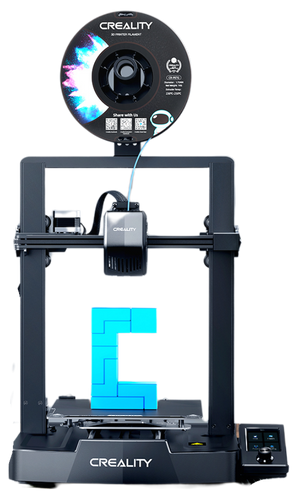
You’re about to start a fantastic journey with the Creality Ender-3 V3 Printer, creating your very first 3D model—Benchy. This guide is packed with easy steps to get you from loading the Benchy model to your first successful print. Whether you’re new to 3D printing or brushing up on your skills, we’ve got all the tips you need right here. Ready to dive in? Let’s Begin and unleash your creativity with endless possibilities!    

learning objectives

understanding creality

The Creality Ender 3 V3 is a popular and affordable 3D printer known for its reliability, precision, and beginner-friendly setup. With its sturdy frame and open-source design, this printer is ideal for hobbyists, makers, educators, and small businesses.

Key features include a generous build volume, fast heating bed, and an easy-to-use interface. The Ender 3 V3 comes partially assembled, making setup quick and straightforward, even for first-time users. It supports a wide range of filament types and offers excellent print quality for its price range.

Whether you’re printing prototypes, models, or functional parts, the Ender 3 V3 delivers consistent performance and detailed results. Its open-source firmware also allows for upgrades and customization as your skills grow.
CLICK ON THE HOTSPOTS TO LEARN MORE ABOUT THE COMPONENTS

BENCHY WALKTHROUGH

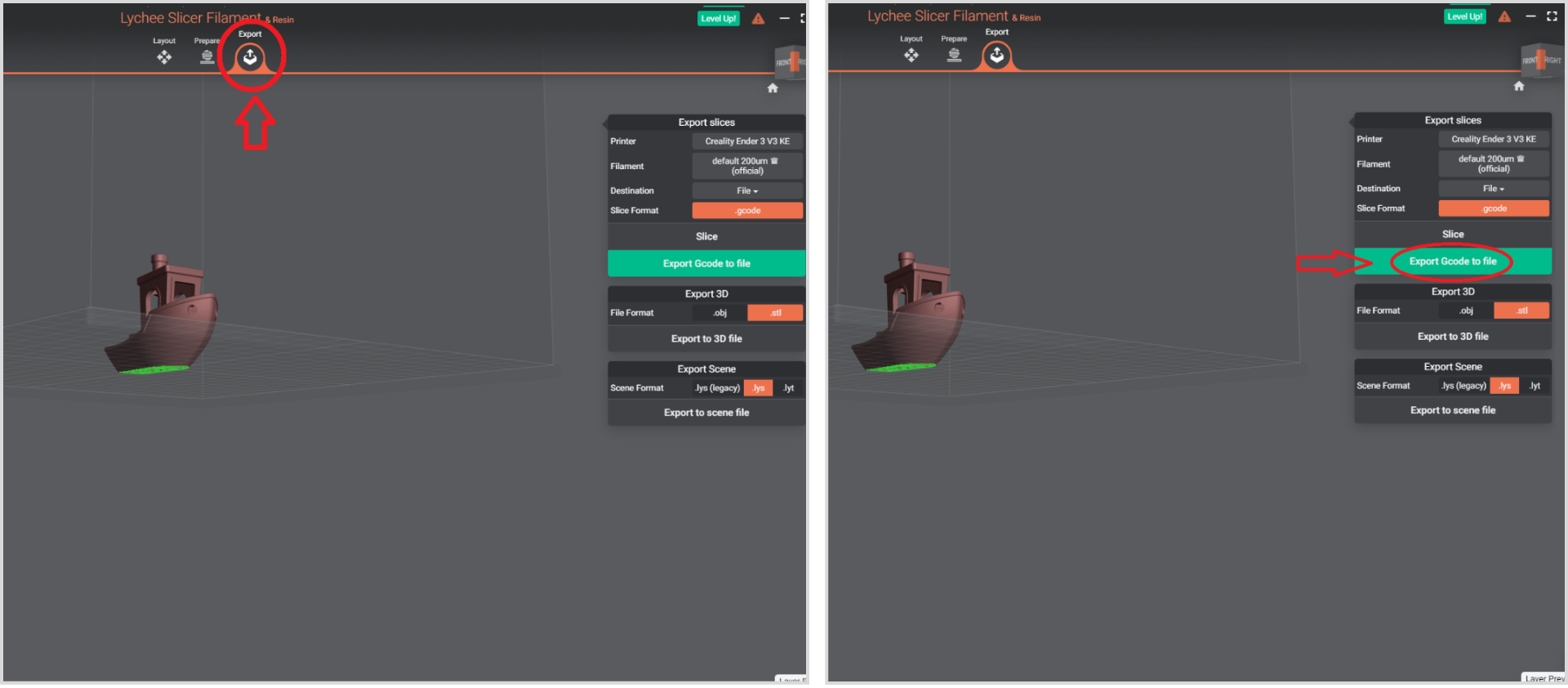
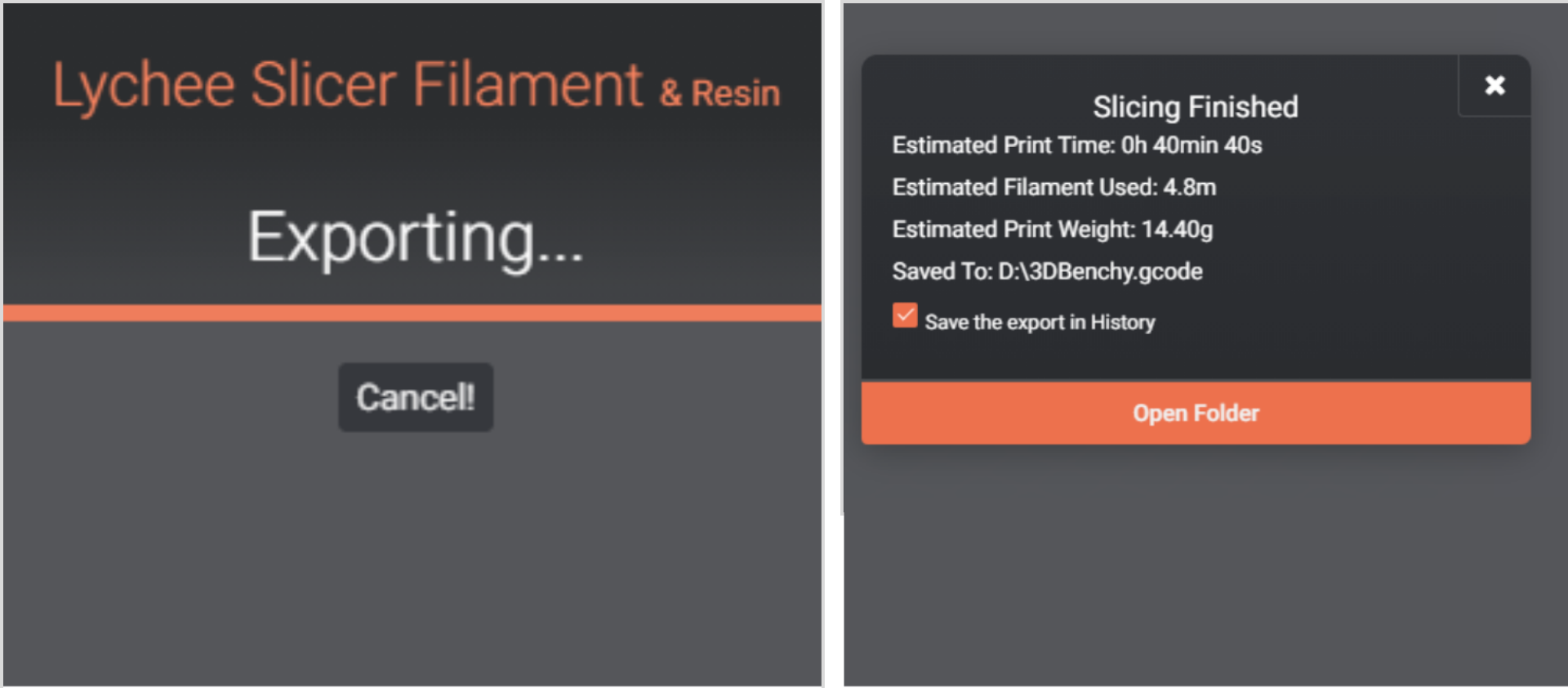
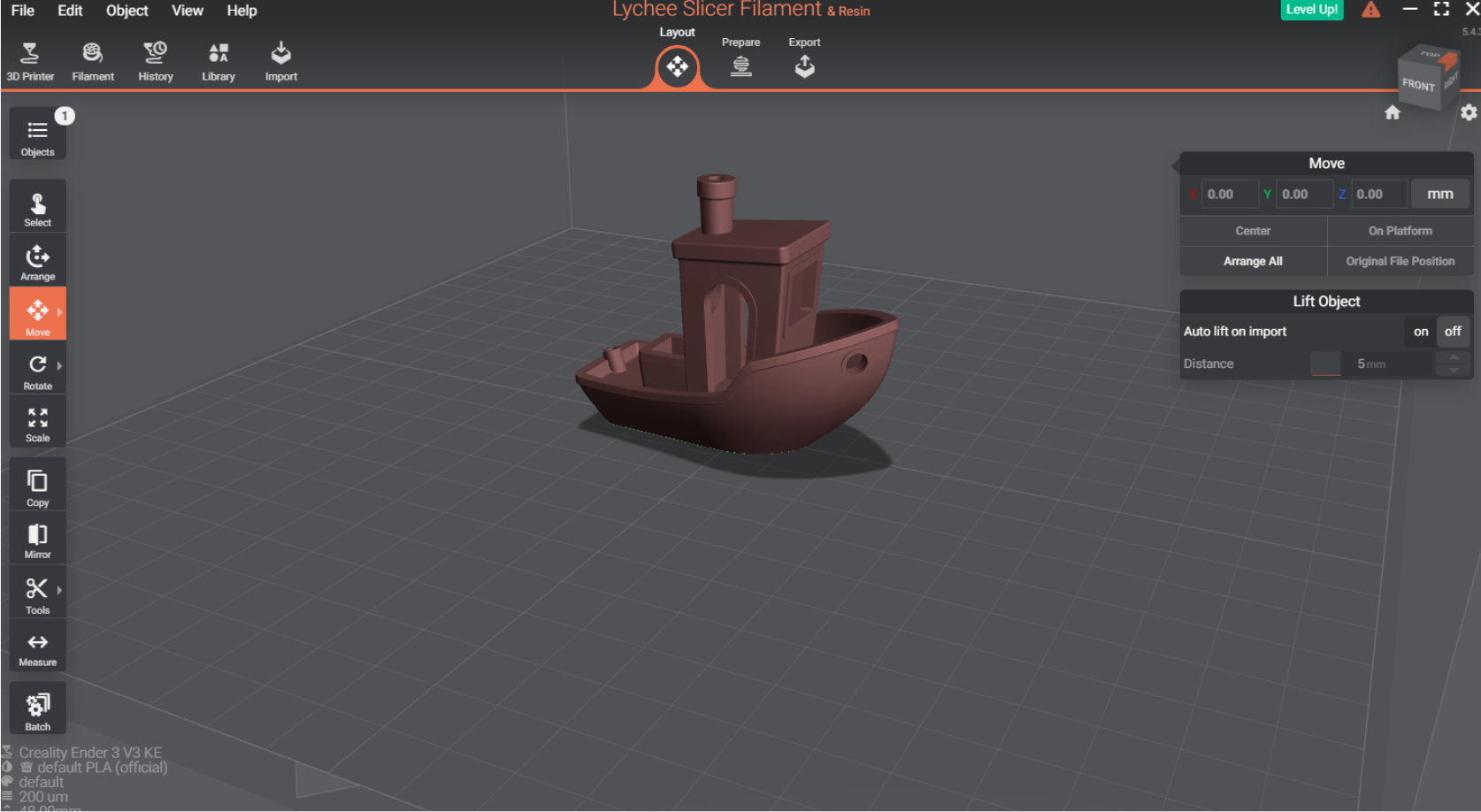
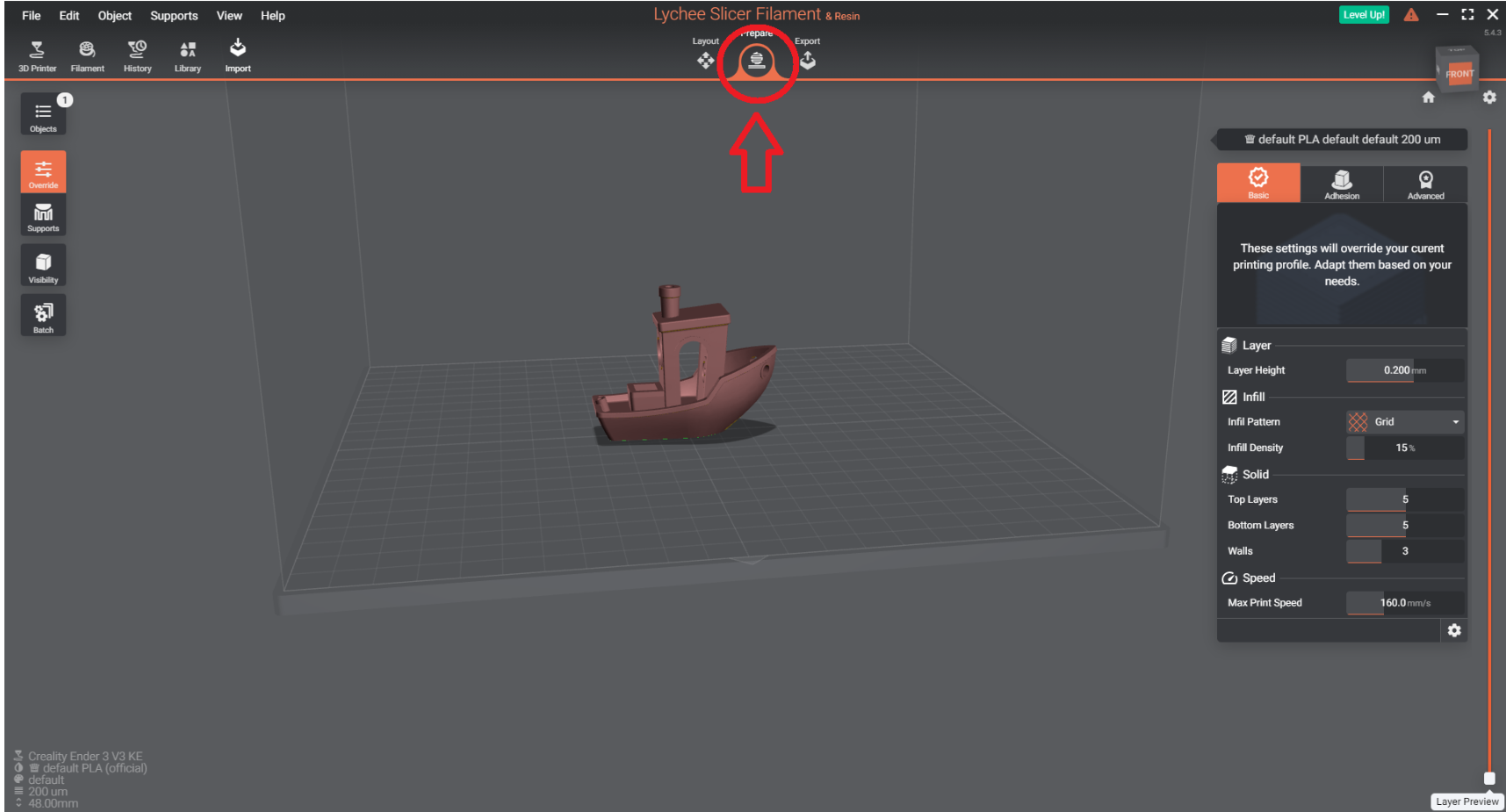
Scroll to view a walkthrough of the slicing process using the Lychee slicing software for the  Creality Ender V3.

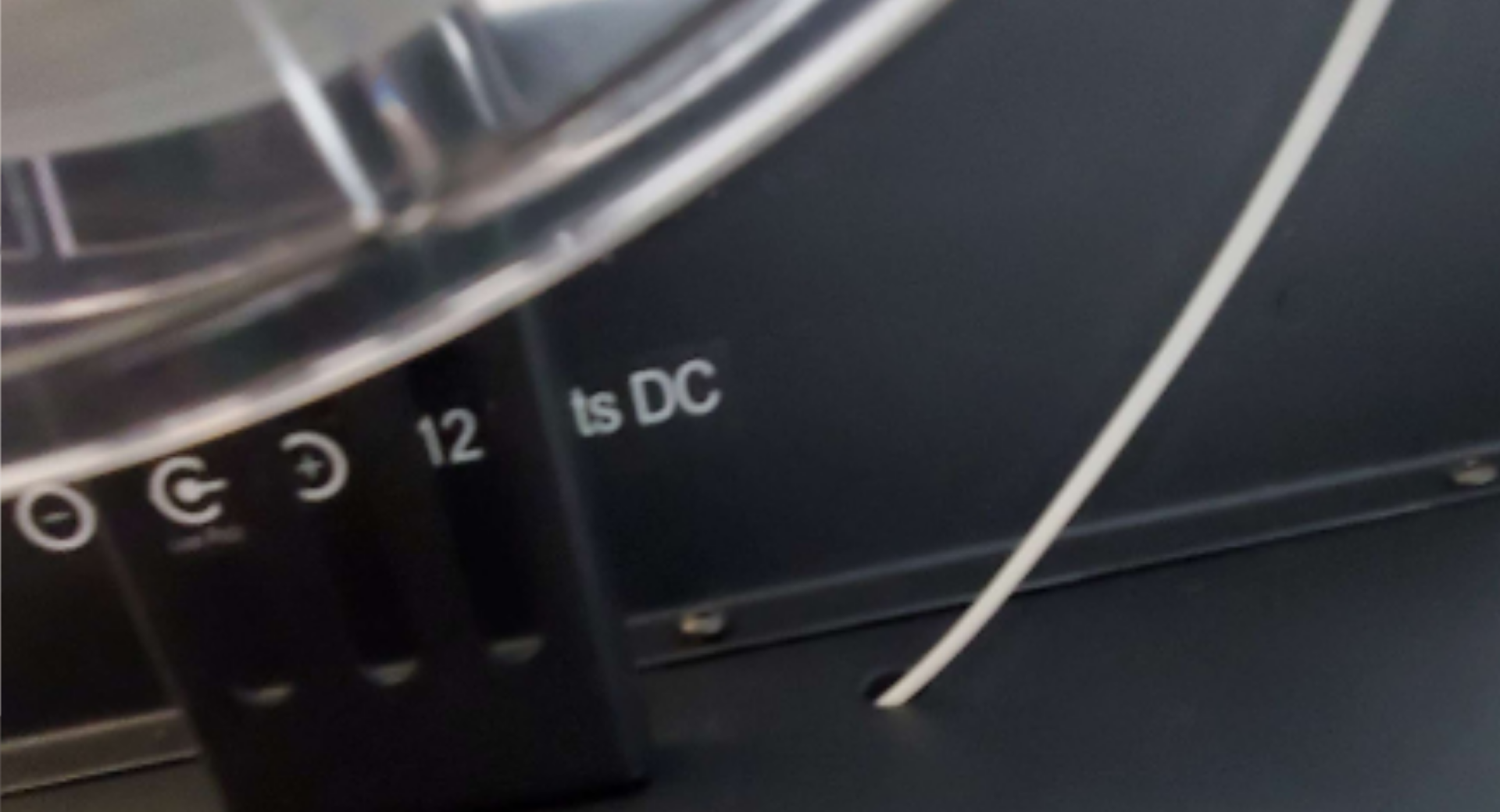
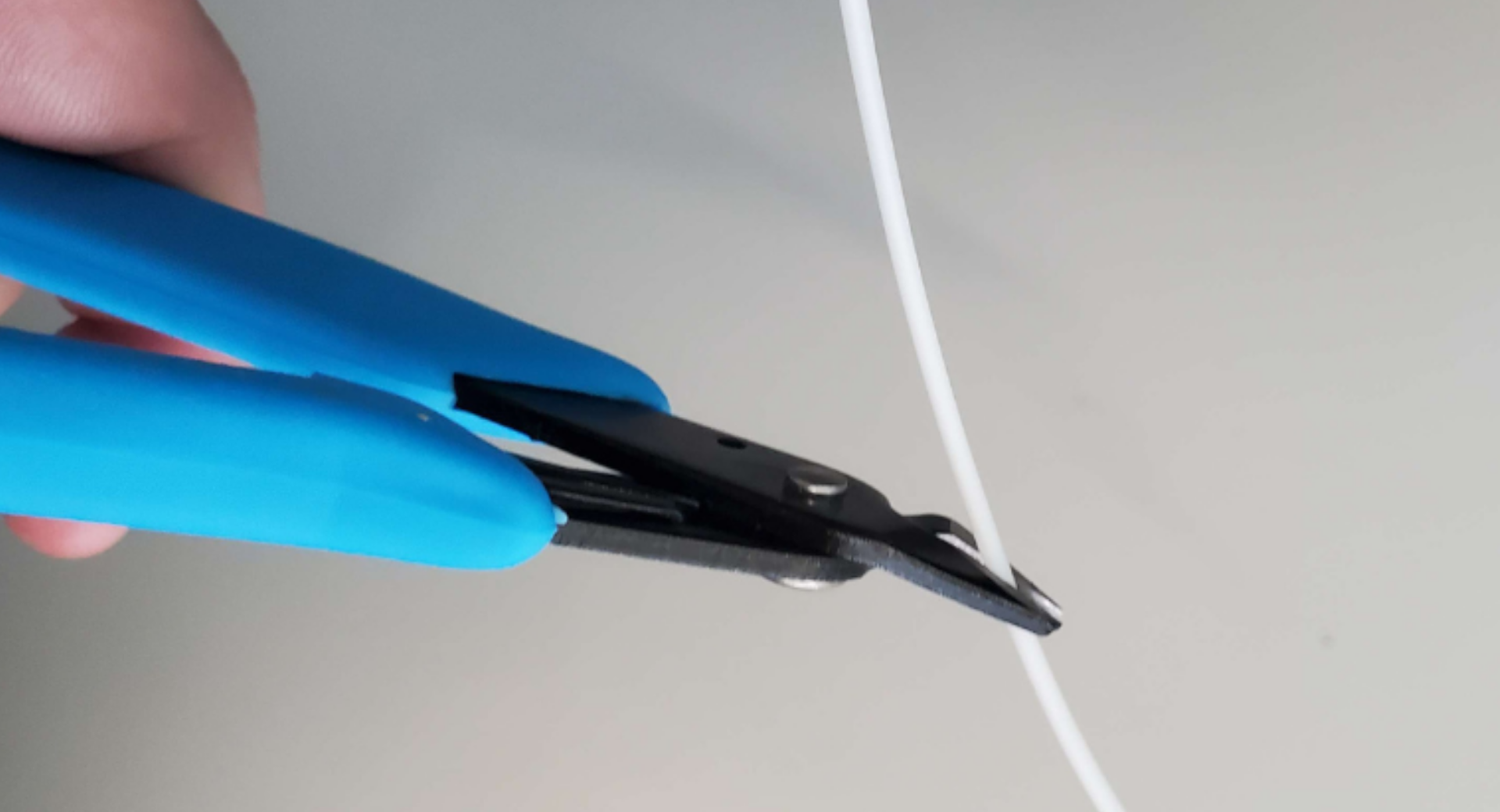
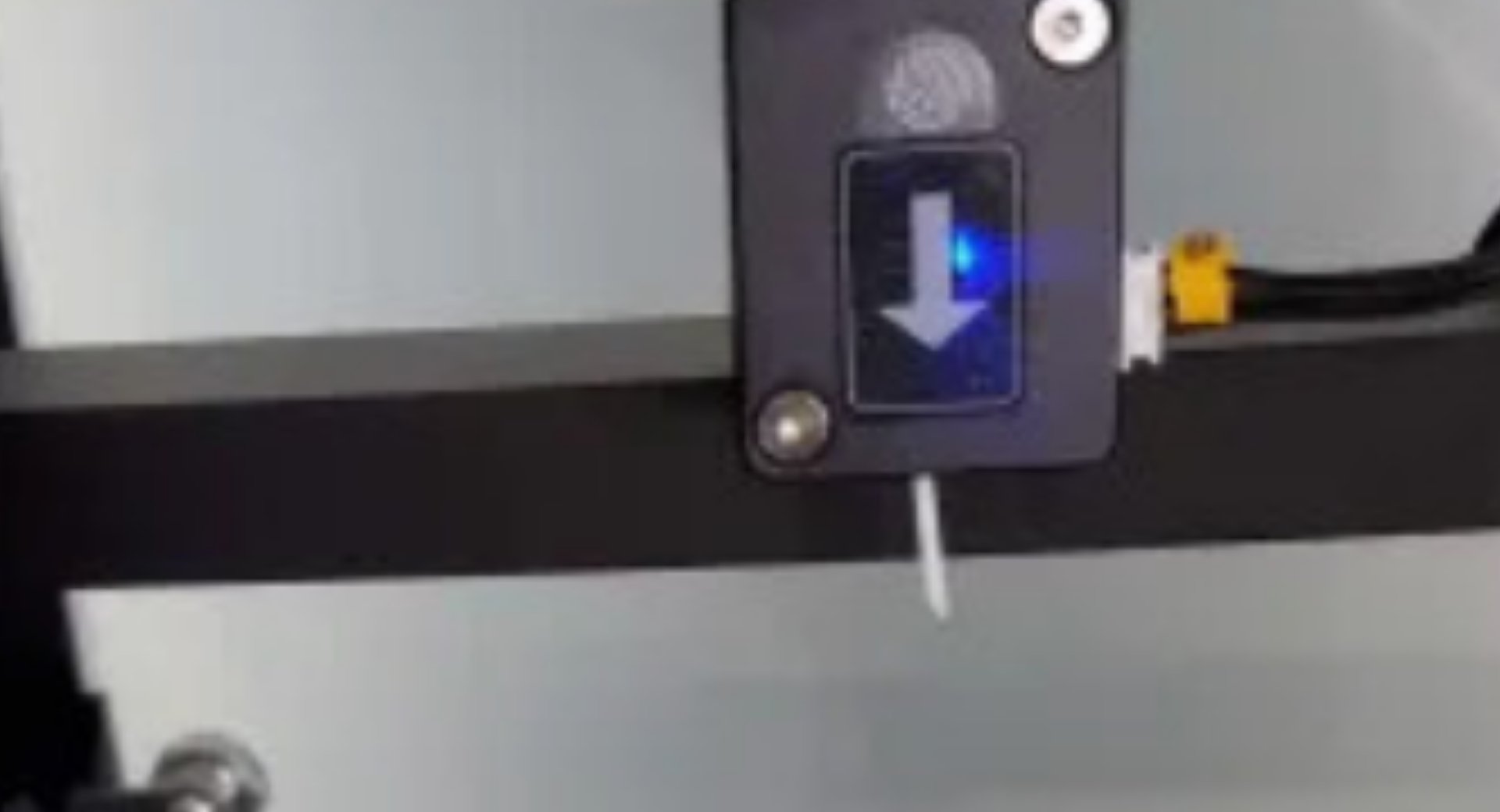
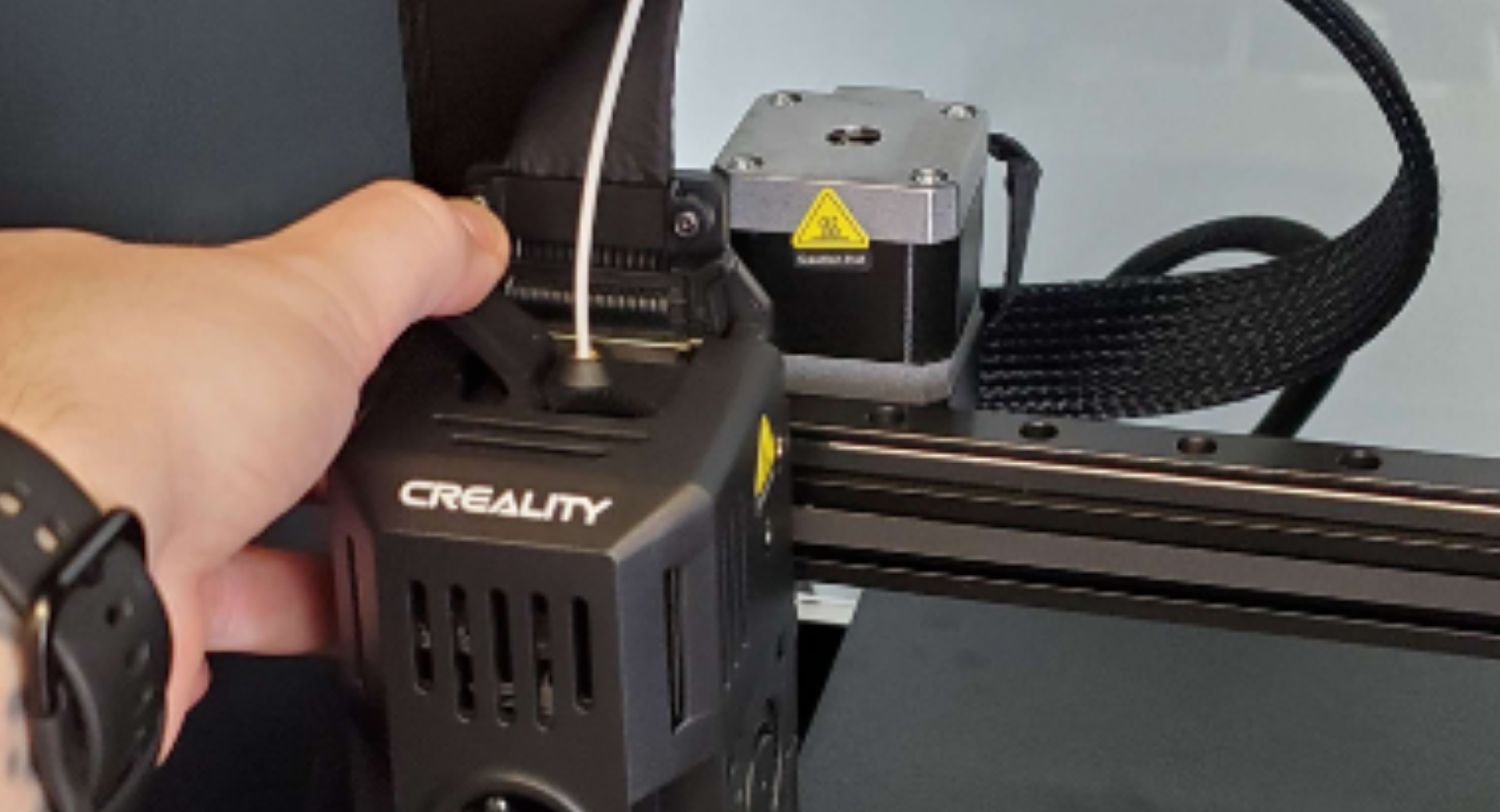
loading filament creality ender 3 v3 ke

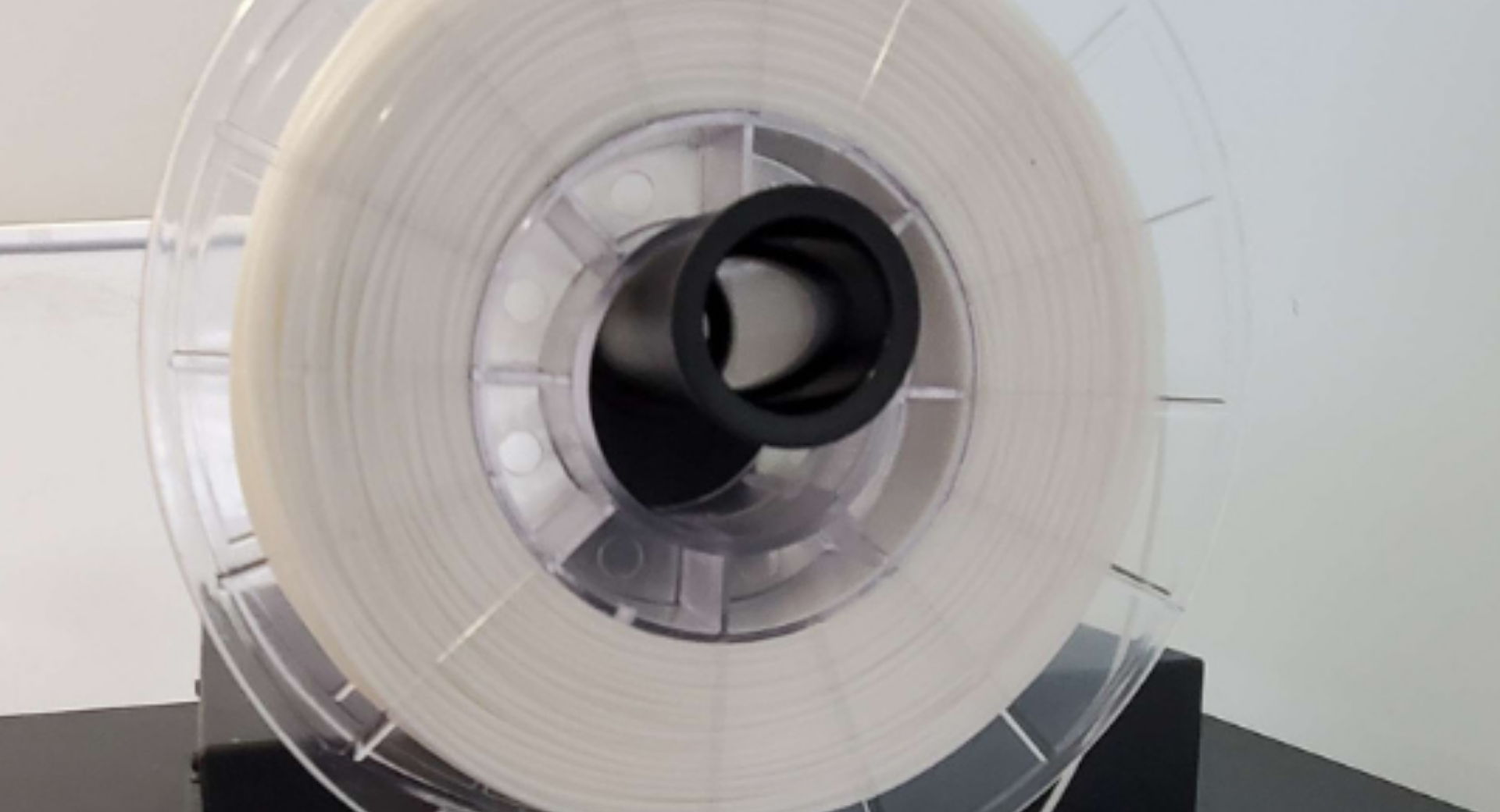
It is important to know how to load the filament on the Ender. You can bring your own PLA filament to print at the YWCA Makerspace.  

printer setup: homing the creality ender 3 v3 ke​

Homing the printer aligns the nozzle and bed correctly, prevents damage, and sets a reference point for correct prints.
Steps to Home the Printer  
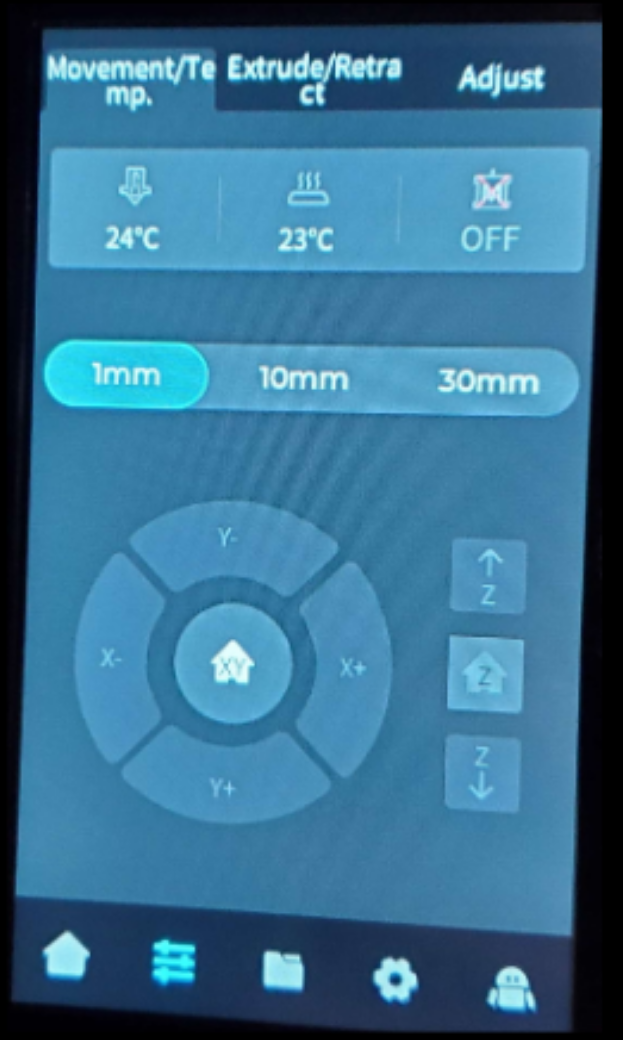
    1. Access Creality Ender’s Settings Menu:
      • On the LCD screen, click the Gear button in the bottom menu. This will bring up the settings
    2. Home the Printer:
      • Click the Home button in the center of the screen. The printer will automatically move to its home position.

USB Flash Drive Printing on Creality Ender 3 V3 KE 

  1. Insert the USB Flash Drive: 
    • Insert the USB flash drive into any USB port on the printer.
  2. Select the Model:  
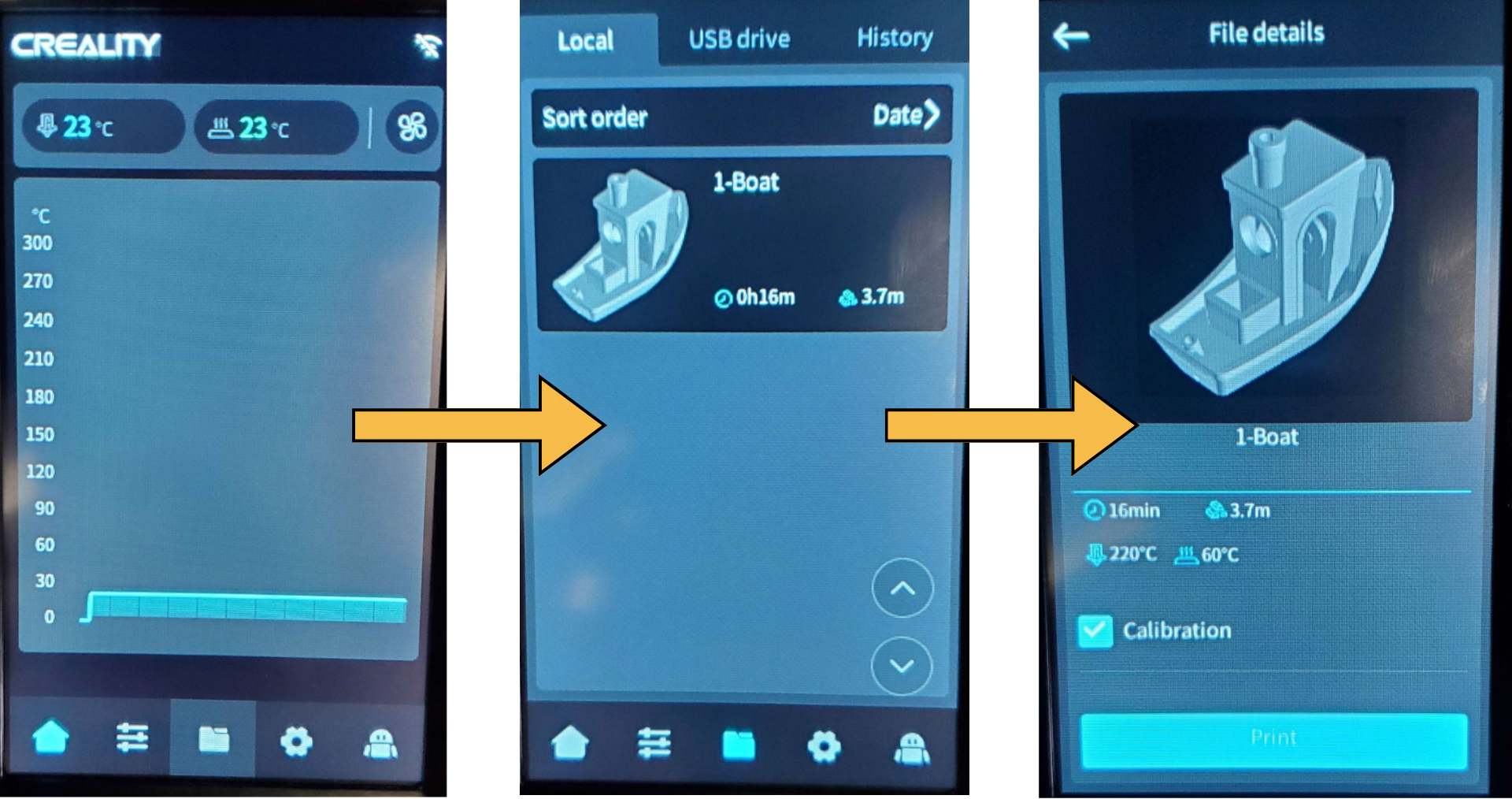
    • On the LCD screen, click the file folder icon in the bottom menu
    • Select the model file from the USB flash drive
    • Click on the model file and then click “Print”
  3. Printer Calibration: 
    • The printer will take a few moments to calibrate the temperature of both the print bed and nozzle.
    • It will also probe multiple points of the bed to confirm that it is leveled.  
  4. Start Printing:
    • The printer will begin printing the model automatically.  

tips

File Placement:  
Saved files must be placed in the root directory (not a subdirectory) of the USB flash drive.  

USB Usage:
Do not insert or remove the USB flash drive during the printing process.  

removing prints

Wait for Printer to Stop
  • Once the model is completed, the printer will lower the build plate and move it forward.  
  • Do not touch the machine until it has come to a complete stop.  
Remove the Print Bed
Carefully remove the print bed. It will be warm, but not hot.  
Flex the Print Bed
For most prints, flex the plate from different angles. This should pop most prints off the bed easily.  
Use a Scraper for Stubborn Parts
For harder-to-remove prints, use a metal scraper to pry the print off the bed.  
Always scrape away from yourself to avoid injuries.  
Dispose of Waste Material Property
Dispose of any waste material properly.
Clean the Print Bed
Clean the print bed after each use to ensure best performance. 
Congratulations!
You have successfully made your first or second 3D model with the Creality Ender printer.
Well done! You can now start more exciting projects and keep learning.