
Let’s dive into what a wide format printer can do, how to prepare your files, and all the cool and creative things you can print with it. Whether you’re an artist, designer, student, teacher, or just curious, you’ll walk away knowing how to bring your ideas to life on a larger-than-life scale.
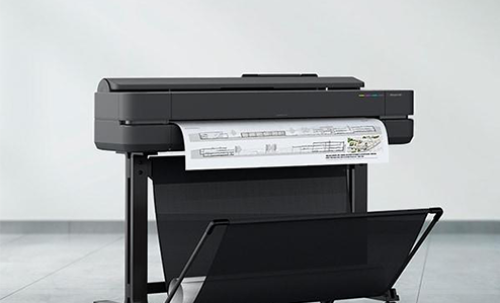
Great question! Unlike your standard home printer, a wide format printer like the HP DesignJet T650 can print super-sized documents up to 36 inches wide—that’s 3 feet across! Imagine a regular 8.5″x11″ sheet… now picture something four times the size, or even longer!
It’s perfect for printing:
You’ll hear terms like A0, A1, A4, and Copy Shop File tossed around. Here’s what they mean in simple terms:
This is your regular printer paper size (about 8.3 x 11.7 inches). Great for testing out your design before going big.
Twice as big as A4 (like two A4 pages side-by-side).
A2 is a great size for posters
A1 is even bigger
A0 is huge! About 33 x 47 inches.
This usually means a PDF designed to be printed big, like a sewing pattern, blueprint, or poster. These files are typically set up with the right dimensions already, and you just need to hit “Print”.
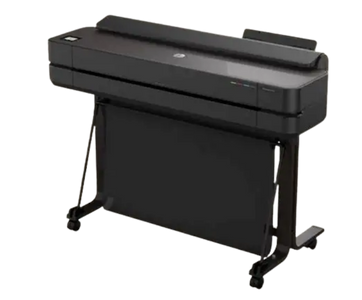
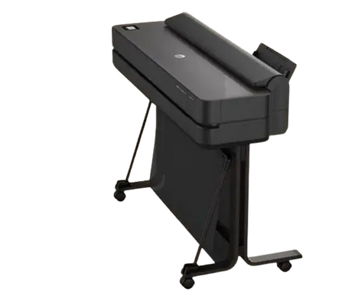
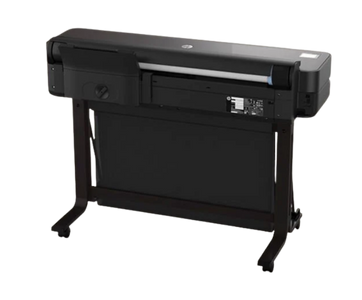
The HP DesignJet T650 is a compact and powerful wide format printer. Here’s what makes it awesome:

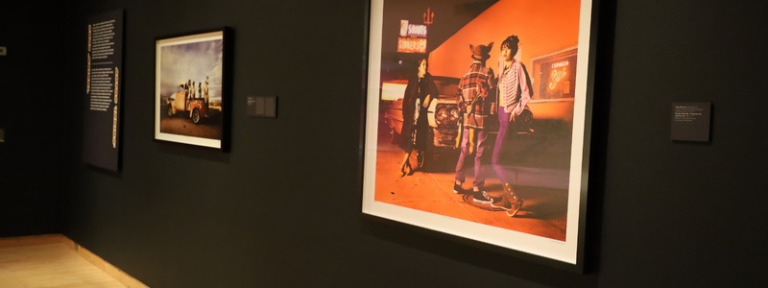
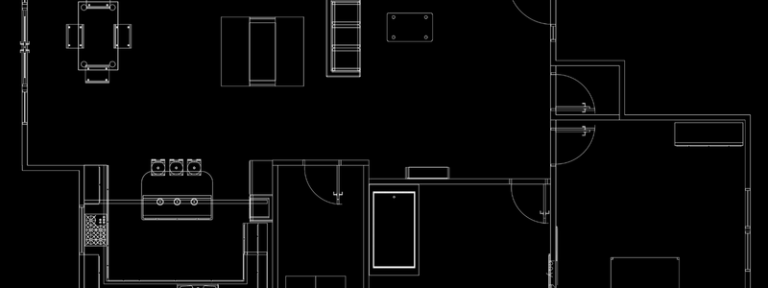
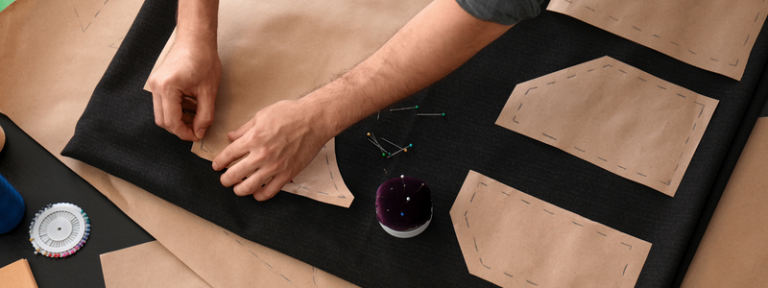


Wide format printing is such a fun and practical tool to add to your creative toolbox. Whether you’re working on a professional project or something personal, there’s something very satisfying about seeing your work blown up and brought to life.
Let’s go through the print settings for wide format printing, especially when you’re working with sizes like A0, A1, A2, and Copy Shop files. I’ll explain it in a friendly, step-by-step way using the HP DesignJet T650 as our go-to printer.
(A0, A1, A2 & Copy Shop PDFs)
Whether you’re printing a poster, an architectural plan, or a sewing pattern, getting the right settings matters! Let’s walk through how to prep your file and choose the correct settings for each paper size.
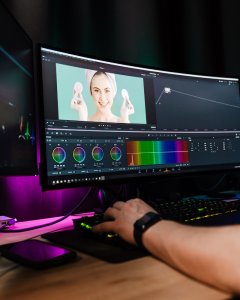
Save as PDF if you can. It preserves size, quality, and layout better than JPEG or PNG.
| Format | Size (inches) | Size (mm) |
| A2 | 16.5 x 23.4 in | 420 x 594 mm |
| A1 | 23.4 x 33.1 in | 594 x 841 mm |
| A0 | 33.1 x 46.8 in | 841 x 1189 mm |
| Copy Shop | Varies: Check PDF | Usually 36″ wide or less, length varies |
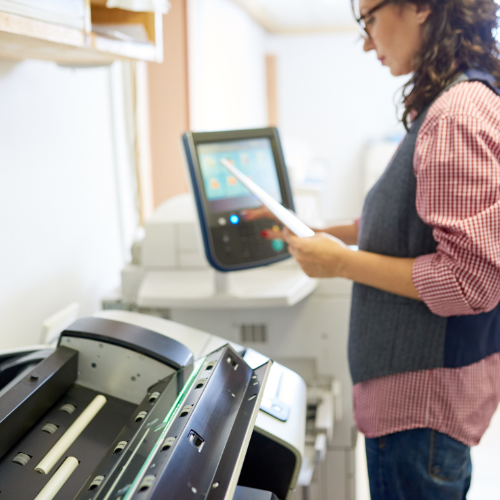
Once your file is read, go to:
Now you’re in the Print Settings window.
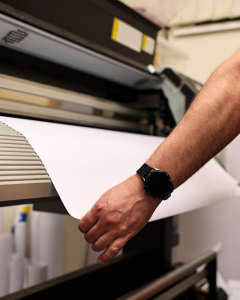
Pro Tip: If your file is set to the right dimensions, you can also select “Print at Actual Size” or “100%”—don’t scale it unless you’re intentionally resizing!
PAPER SOURCE
If you’re using a roll:
PAGE SIZE/PAPER SIZE
Choose the right size from the drop-down menu:
PAPER TYPE
Choose based on what you’re printing on:
ORIENTATION
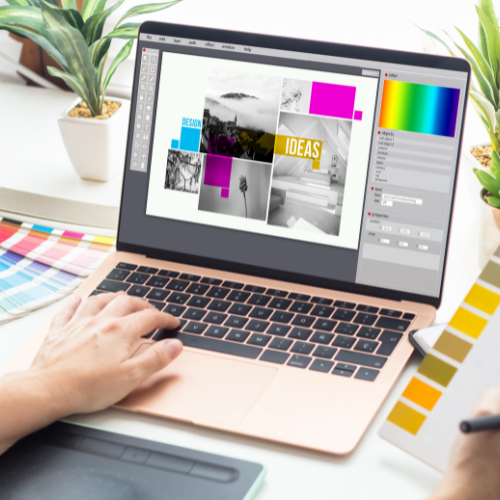
BEFORE HITTING PRINT:
| File Type | Roll Width | Print Settings |
| A2 | 24″ or 36″ | Paper size: A2 (16.5″ x 23.4″), Portrait |
| A1 | 24″ or 36″ | Paper size: A1 (23.4″ x 33.1″), Portrait/Land. |
| A0 | 36″ | Paper size: A0 (33.1″ x 46.8″), Portrait |
| Copy Shop | 36″ | Set to actual size (e.g., 36″ x 72″) |

Book your appointment in our MakerSpace today to get started.
Loading event details…
Putman Family YWCA
52 Ottawa Street North
Hamilton ON 1A1 1A1
Lorem ipsum dolor sit amet, consectetur adipiscing elit, sed do eiusmod tempor incididunt ut labore et dolore magna aliqua.
SCAN FOR MORE INFORMATION OR TO REGISTER IF APPLICABLE:

Tap “Get Started” under:
These will take you to tools that help you discover what you’re looking for.
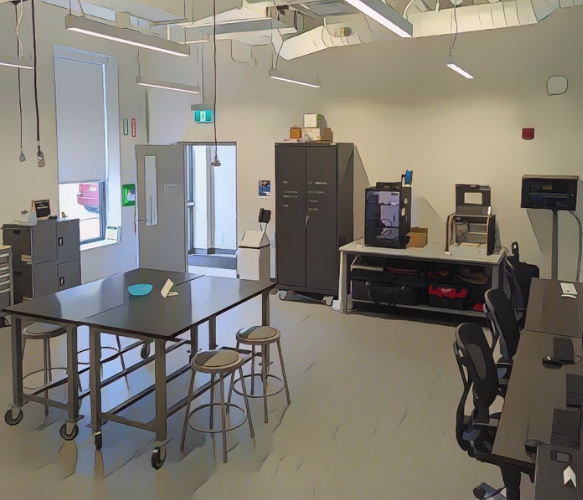
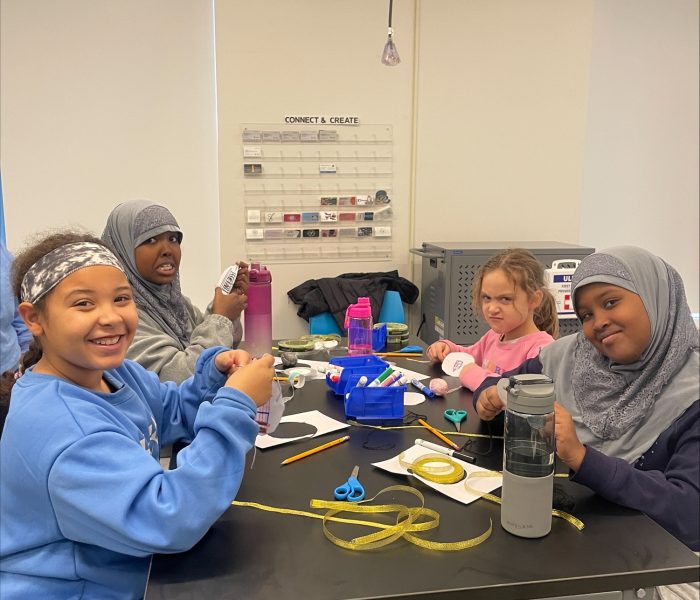


Putman Family YWCA MakerSpace
52 Ottawa Street North,
Hamilton ON
In id cursus mi pretium tellus duis convallis.